Checking Tire Pressure, Oil Life and Fuel Level From Your Phone With myCadillac
September 14 2026,
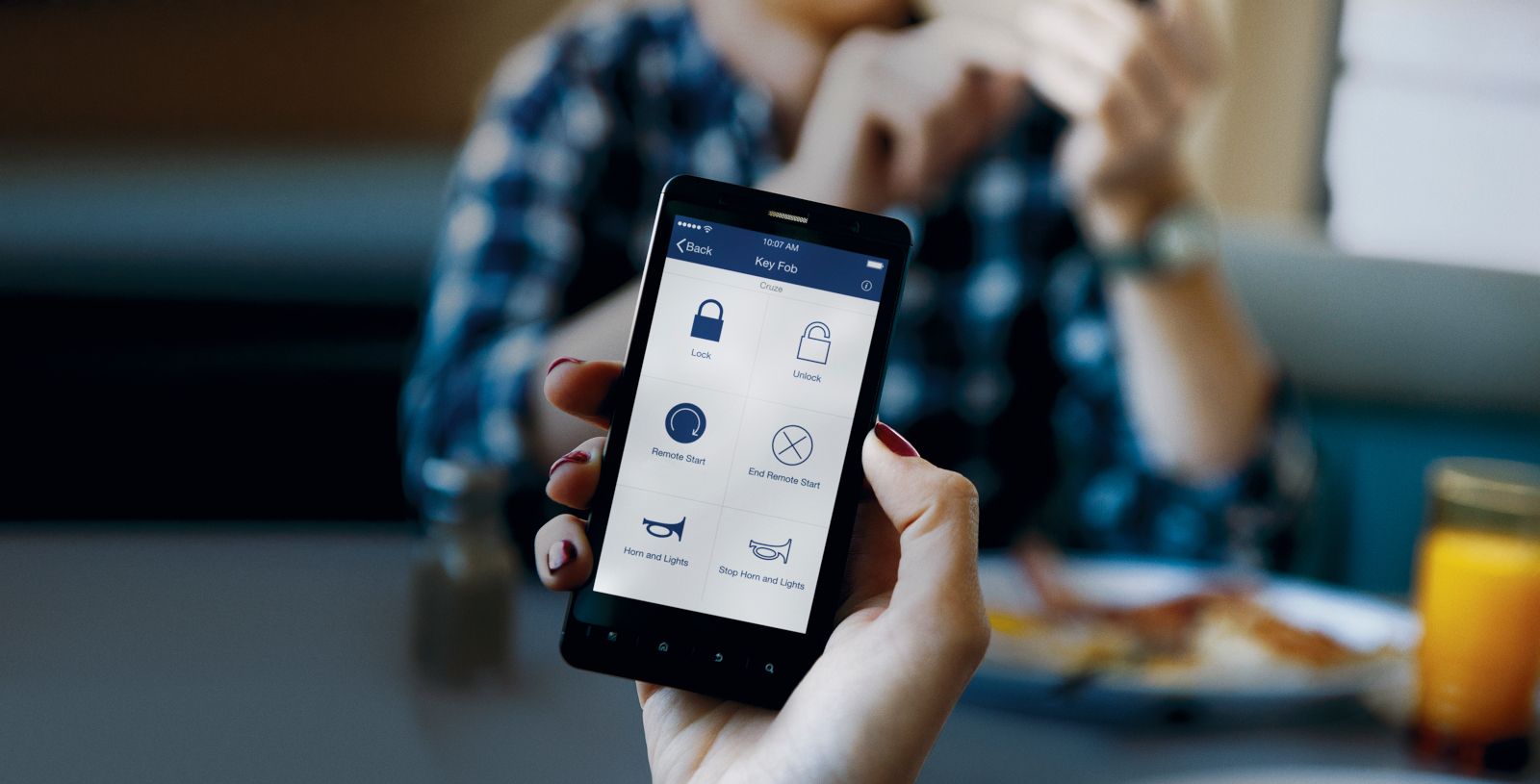
Most Cadillac owners in Quebec have a routine before heading out: check the weather, grab the keys, maybe glance at the dash. The myCadillac app adds one more quick step, letting you check your vehicle’s status from your phone before you’re anywhere near it.
This is a practical look at what the app actually shows, how to set it up, and where to find the information that matters on a properly equipped Cadillac.
What The Mycadillac App Actually Does
The myCadillac app is a phone-based tool for viewing vehicle information and using select remote functions on compatible, properly equipped Cadillac vehicles. It works on all model years 2010 and newer, with a couple of exceptions for the 2018 CT6 and CT6 Electric.
What you see and what you can do through the app depends on your vehicle’s equipment, your smartphone, and the service plan you’re enrolled in. A base connected plan will not unlock the same features as a fuller OnStar subscription, so two Cadillac owners can see slightly different Home screens.
For a gas or hybrid Cadillac, the app centres on Vehicle Status: fuel level, oil life, tire pressure, odometer, and diagnostic alerts, plus door, hood, or trunk status where equipped. For an EV, the equivalent screen is Charge Management, covering battery level, estimated range, plug-in and charging status, and estimated charge-complete time. The two are related but not interchangeable, so it helps to know which one applies to your vehicle.
|
Vehicle Status (gas/hybrid) |
Charge Management (EV) |
|
Fuel level |
Battery level |
|
Oil life |
Estimated range |
|
Tire pressure |
Plug-in/charging status |
|
Odometer |
Charge complete time (if applicable) |
|
Door/hood/trunk open status (if applicable) |
|
|
Diagnostic alerts |
How It Works, Step By Step
Setup takes a few minutes. Download myCadillac from the Apple App Store or Google Play, then sign in with the same GM account email you gave your dealer when you bought the vehicle. New users go through a short identity-verification step before the app connects to the vehicle.
Signing in with an OnStar-registered account is what actually syncs the app to your Cadillac and unlocks subscription-based features. Without that connection, the Home screen behaves differently and some tiles simply will not appear.
Once you’re in, the Home screen is organized around three tabs along the top: My Vehicle for essential remote commands and quick-view widgets like Vehicle Status or EV Charge Status, Controls for additional remote commands and vehicle settings, and Help Centre for support resources and the Owner’s Manual.
To check status specifically, open the app, confirm the correct vehicle is selected at the top of the screen, tap My Vehicle, then tap Vehicle Status (or Charge Management on an EV). If you have more than one Cadillac, or vehicles from other GM brands, on the same account, this vehicle-selection step matters: the details shown only apply to whichever vehicle is currently selected.
The top of the status screen always shows when the data was last updated. If the numbers on your phone don’t match what’s on the dashboard, it usually means the app hasn’t refreshed recently, not that anything is wrong with the vehicle.
Why This Matters For Everyday Ownership
A quick phone check before walking to the vehicle answers the two questions most owners actually have in the moment: is there enough fuel or charge to get where I’m going, and is anything flagged that needs attention. That’s a fast snapshot, not a full diagnostic.
Remote commands connect to the same status picture. Lock, unlock, and remote start, where the vehicle and plan support them, live on the My Vehicle tab alongside the status widgets, while less-common controls like sounding the alarm or flashing the lights sit under the Controls tab.
For EV owners, the app goes further with charge-specific tools: Explore Range to see how far you can go and still return home on the current charge, nearby charging station search from the map screen, and route planning through Apple CarPlay or Android Auto when the vehicle supports it. Features like Plug and Charge or Charge-by-App require a one-time activation and a linked payment method before they’ll work.
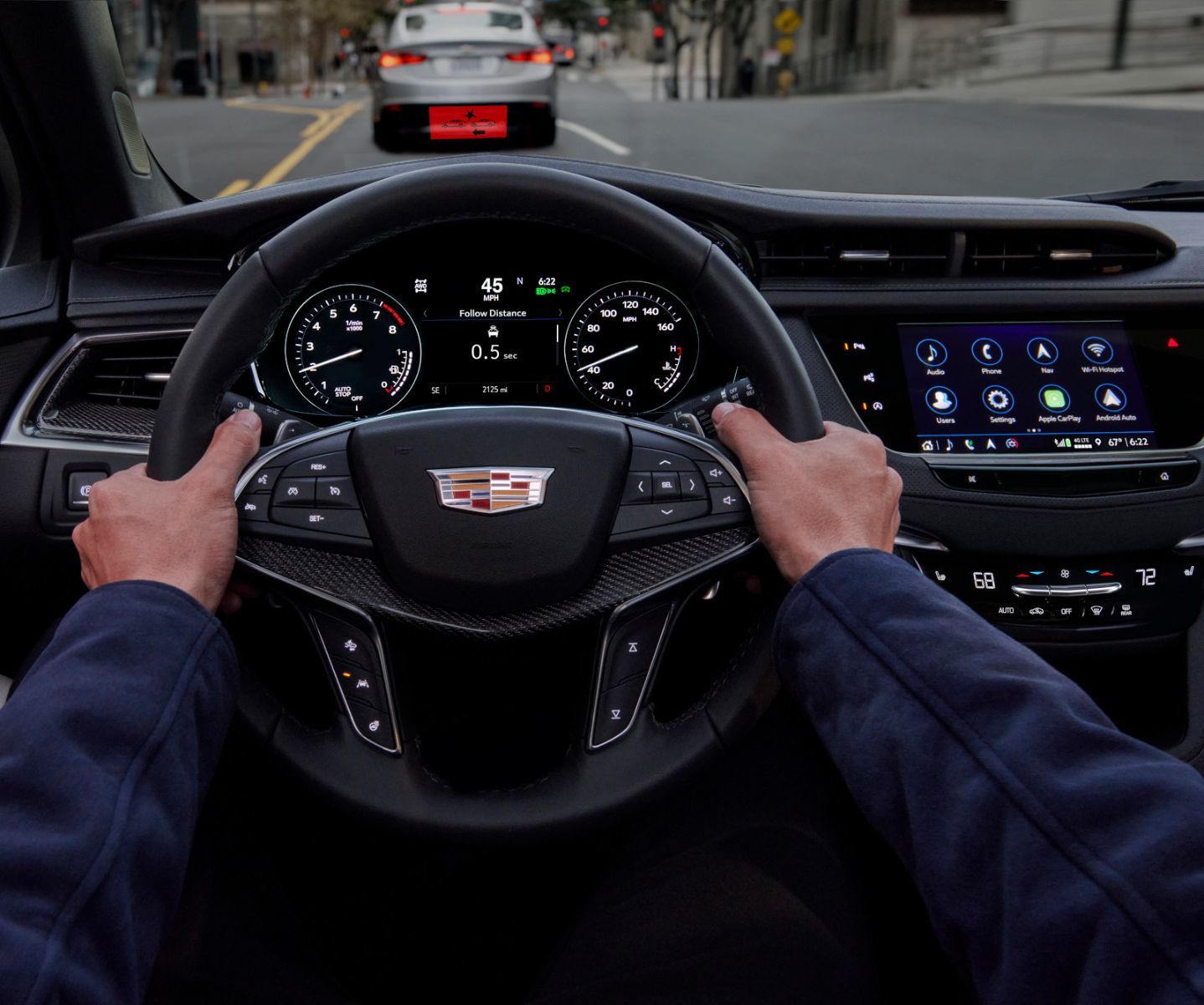
Some of the same information is also available inside the vehicle. If the app ever looks off, starting the car and checking tire pressure, oil life, or fuel and battery level through the driver display is a reliable way to confirm what’s accurate.
Who Gets The Most Out Of It
Owners who drive daily and want one habit before leaving the house, rather than a walk around the vehicle, get the clearest benefit. So do owners managing more than one vehicle on a single account, since the app keeps status and controls separated by vehicle instead of mixing them together.
EV owners have an extra reason to check in regularly: charge level, estimated range, and plug-in status change throughout the day in a way fuel level typically doesn’t, and the Home screen surfaces all three without opening a separate app.
For feature-specific questions, like why a recent oil change isn’t reflecting in the oil life status, the Owner’s Manual and the app’s Help Centre walk through the reset steps. The Help Centre also connects to a Cadillac specialist or an OnStar Advisor when something needs a closer look.
Getting The App Working On Your Cadillac
The myCadillac app turns a walk-around check into a phone screen, provided the vehicle is enrolled correctly and the account matches the email on file with your dealer. Getting that setup right the first time makes every check afterward straightforward.
Visit Brossard Cadillac in Brossard to confirm your vehicle’s app compatibility, verify your account enrollment, or get hands-on help setting up remote commands and charge tools during a service or delivery visit.